
SKYSHARE / FIELD GUIDE
A little guide to
sharing the sky
A connection begins with looking up.
A sunset on your way home. Clouds outside your window. When you want to share a moment like that, there is a place devoted to the sky. SkyShare lets you photograph the everyday sky, share it, and discover what others are looking up at.
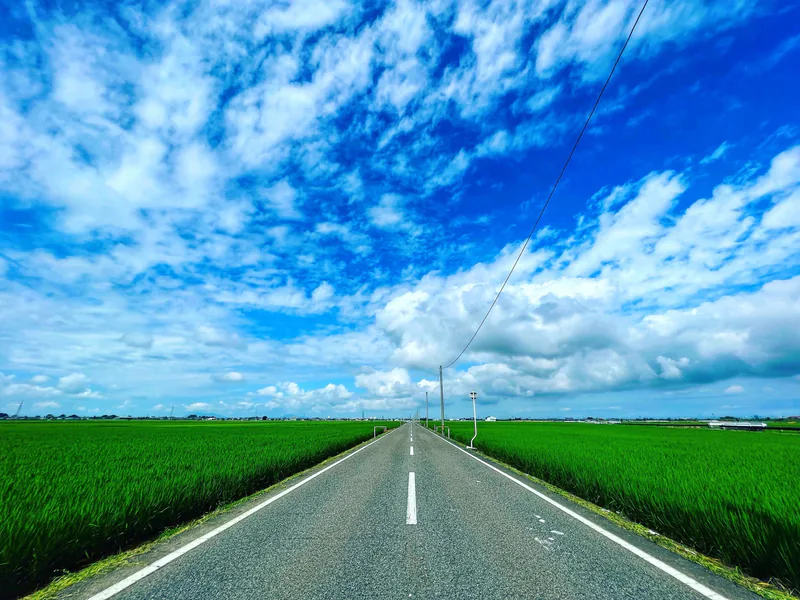
What belongs in a sky-only feed?
Sunrise, blue skies, sunset, or a starry night: on SkyShare, the sky takes the lead. The same view changes with the clouds and the direction of the light. You do not need an extraordinary location. A small change on your usual route is worth noticing, too.
Before choosing a photo-sharing app, consider its subject, how people respond, and what location information is shared. SkyShare is for people who enjoy looking at the sky, with four reactions for expressing a feeling.
Before you start using SkyShare
- Do I need to register?
- You do not need to register an email address and password to browse or post. Accept the terms when you first open the app. You can set a display name and profile image.
- What can I do for free?
- You can browse and post sky photos, use the four reactions, and explore Sky of the Day for free. See “Photo visibility and saving” below for how long photos appear in your lists.
- Devices and downloads
- SkyShare is available for iPhone and Android, and is free to download. Check supported operating systems and availability through the official store links below.
- Camera and location permissions
- Allow camera access to take photos in the app. Location is optional. Check both whether to attach a location and what details appear in the photo itself.
- Ways to enjoy it
- Share a sunset on your way home, see the sky somewhere far away, or send a feeling through four reactions. SkyShare is for people who enjoy photos with the sky as their subject.
From looking up to sharing
Take a photo in Camera
Stop somewhere safe and open Camera from the bottom navigation. Allow camera access, frame the sky, and tap the round shutter button. To choose from your photo library, use the photo icon on the camera screen.
Check the photo and sky type
On the preview screen, check the colors and all four corners of the photo. When sky-type selection is available, choose the morning, daytime, evening, or night sky that matches the image. Tap Retake to go back.
Confirm safety and tap Post
Check for faces, nameplates, vehicle plates, and other unintended details. Select the safety confirmation to enable Post. After the image check and upload finish, Posted! appears and the app returns to the timeline. If an error appears, read the message rather than assuming the post was completed.
Explore the sky through real app screens
Browse the timeline, open a photo, and discover the skies of the day. These recorded screens illustrate the app; posts and rankings are not live, and the appearance may differ by app version.
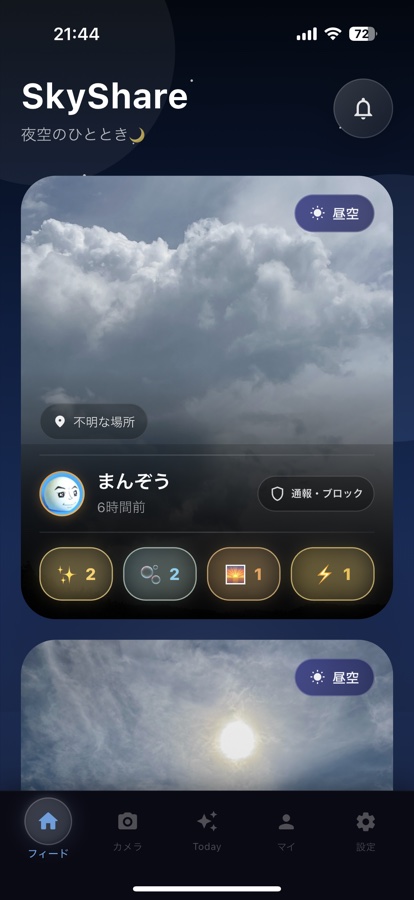
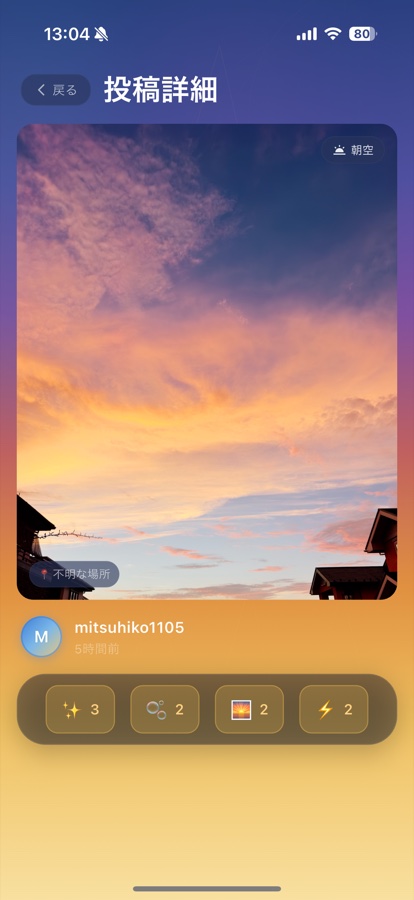
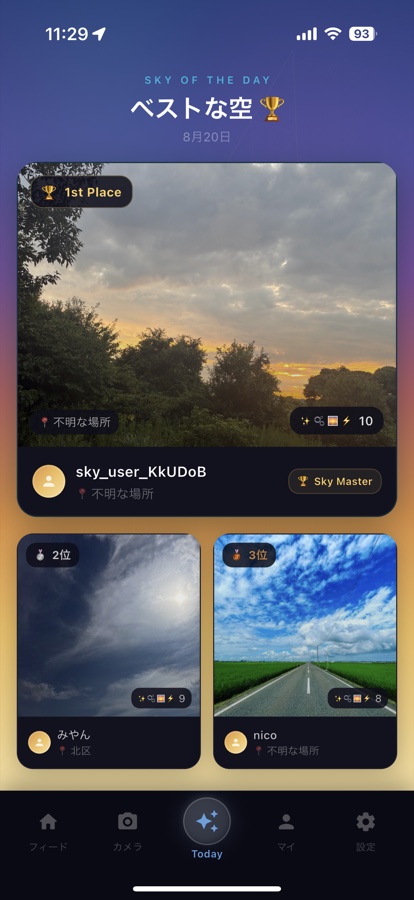
Select an image to open a larger example. The app screens shown here are in Japanese.
Four feelings. Sky of the Day.
Love the colours? Feel a little calmer? Remember another place or time? Choose the reaction that comes closest to how the photo makes you feel.
TAP TO FEEL / TRY A REACTION
- Beautiful
- Soothing
- Emotional
- Uplifting
Tap a feeling to try it.
This is a demo. Counts exist only on this page and are not sent to any real post. Tap again to undo.
Sky of the Day ranks eligible posts using the reactions they receive. Open a photo that catches your eye and notice the arrangement of clouds or the balance of sky and ground. It might inspire your next photo.
Photo visibility and saving
In version 1.0.4, the timeline shows posts from the past 24 hours, and your own post list shows up to 50 posts from the past 14 days. Leaving the timeline does not mean that the photo data has been deleted; these are the periods covered by the lists.
Keep the original photo on your device or elsewhere if you want to preserve it for longer. You can delete your own posts from the post menu. Before deleting, check that you have any original images you want to keep. For questions about saving or visibility, contact Support (Japanese).
Choose whether to include a place
Location access is optional. If you allow it, a post can display an approximate area, such as a city or ward. Precise GPS coordinates are not stored as post data. You can still post without location permission.
A photo can reveal its location even without a place label. Check for views from your home or distinctive signs. If you see an inappropriate post, use Report in its menu. For help, visit Support (Japanese); for information about data handling, read our Privacy policy (Japanese).
Common questions
- Do I need to be good at photography?
- No special skills are needed. Start with one photo of your everyday sky. Before posting, check that it shows the clouds or colours you wanted to share.
- Can I post without location permission?
- Yes. If you do not want to include a place, check SkyShare’s location permissions in your device settings.
- Can I share more than blue skies?
- Absolutely — sunrise, sunset, and night skies are welcome, too. Whatever the weather or time of day, make the sky the focus of your composition.
YOUR NEXT SKY
Your next sky belongs on SkyShare.
Available for iPhone and Android. Check each store for current requirements and availability.
This website is available in Japanese and English. Check the current store listings for app languages and availability in your region.

